
If you’ve ever seen the dreaded “Storage almost full” warning right before you take a photo or install an update, you’re not alone. Knowing how to free up storage on Android is one of the most useful skills any phone owner can learn, and it doesn’t require deleting the photos, videos, and documents you care about. In this guide, you’ll learn practical, safe methods to reclaim gigabytes of space while keeping everything that matters.
Why You Need to Know How to Free Up Storage on Android
Before fixing the problem, it helps to understand where your space goes. Most people assume photos and videos are the only culprits, but several hidden items quietly pile up:
If you want to learn how to free up storage on Android, start by identifying these hidden space hogs.
- App cache and leftover data: Apps store temporary files to load faster, and these can grow to hundreds of megabytes each.
- Messaging app media: WhatsApp, Telegram, and Messenger save every photo, voice note, and video you receive.
- Downloads: Old PDFs, APK files, and installers sit in your Downloads folder long after you need them.
- Offline content: Music, podcasts, and videos downloaded for offline use can take up huge amounts of space.
- System updates and bloatware: Large updates and pre-installed apps you never use eat into your storage.
The good news is that almost all of this can be cleaned up or moved without losing anything valuable.
Step 1: Check What’s Actually Using Your Storage

The smartest way to approach how to free up storage on Android is to start with a clear picture. Guessing wastes time.
- Open Settings.
- Tap Storage (on some phones, it’s under Battery and device care or Device care).
- Review the breakdown by category: Images, Videos, Audio, Apps, Documents, and Other.
This screen shows you the biggest space hogs at a glance. If “Videos” takes up 20 GB, you know exactly where to focus first. Many phones also suggest files to remove, but treat those suggestions as a starting point and review them before confirming.
Step 2: How to Free Up Storage on Android by Clearing App Cache
Cached files are temporary data. Clearing them won’t delete your accounts, messages, or saved progress. The app simply rebuilds the cache as needed.
To clear cache for a single app:
- Go to Settings > Apps.
- Select the app (start with social media, browsers, and streaming apps).
- Tap Storage, then Clear Cache.
Important: Tap Clear cache, not Clear data. Clearing data resets the app and can remove logins and local files.
Apps like Instagram, TikTok, Facebook, and Chrome often hold 500 MB to 2 GB of cache each. Clearing just a few of them can free up several gigabytes in minutes.
Step 3: How to Free Up Storage on Android by Backing Up Photos
Photos and videos usually take up the most space, and they’re also the files people fear losing. The solution isn’t deletion. It’s moving them somewhere safe.
Google Photos is the easiest option for most Android users:
- Open the Google Photos app and sign in.
- Turn on Backup.
- Once your photos are backed up, tap your profile picture and choose Free up space.
Google Photos will remove only the local copies that are already safely backed up. Your memories stay accessible from the app and any other device where you sign in.
If you prefer alternatives, OneDrive, Dropbox, and Mega offer automatic camera uploads too. You can also transfer files to a laptop or an external hard drive for a free, permanent backup.
Tip: Back up over Wi-Fi to avoid burning through mobile data, especially if you have a large library.
Step 4: Clean Up WhatsApp, Telegram, and Other Messaging Apps
Messaging apps are among the sneakiest storage thieves. Group chats alone can fill your phone with forwarded videos, memes, and voice notes you’ve long forgotten.
For WhatsApp:
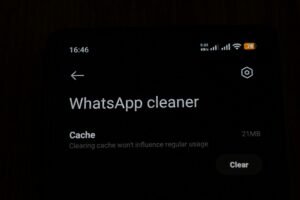
- Open WhatsApp and go to Settings > Storage and data > Manage storage.
- Review the list of chats sorted by size.
- Open the largest ones and delete large files, or select items you no longer need.
WhatsApp also lets you filter by “Forwarded many times” and “Larger than 5 MB,” which makes it easy to remove junk without touching meaningful conversations.
Cleaning chat media is one of the fastest ways to free up storage on Android without losing important files.
For Telegram: Go to Settings > Data and Storage > Storage Usage and clear the cache by category. Telegram keeps your media in the cloud, so you can re-download anything later.
Before removing important media, such as business documents or special photos, save them to your cloud storage or computer first.
Step 5: Use Files by Google to Find Junk Quickly
If you want a simple, guided way of learning how to free up storage on Android, the free Files by Google app is excellent. It scans your phone and highlights:
- Junk files and temporary data
- Duplicate files
- Large files you rarely open
- Unused apps
- Old screenshots and memes
You stay in control the whole time, because the app shows each item and asks for confirmation before anything is removed. It’s a safe way to clean up without accidentally erasing something important.
For beginners, this is the safest tool for freeing up storage on Android without making mistakes.
Step 6: Empty Your Downloads Folder and Trash
Your Downloads folder is often a graveyard of forgotten files, such as old receipts, installers, and PDFs you opened once.
- Open your Files or My Files app.
- Tap Downloads.
- Sort by Size (largest first).
- Review and delete what you no longer need, or move important documents to the cloud.
Don’t forget the trash or recycle bin. Both Google Photos and many Samsung gallery apps keep deleted items for 30 days before removing them permanently. Emptying the trash instantly recovers that space, so only do it after you’ve confirmed nothing important is inside.
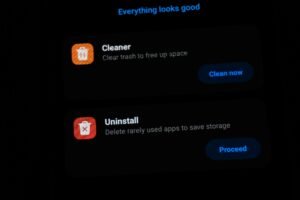
Step 7: Uninstall or Disable Apps You Don’t Use
Apps take up more space than most people realize, especially games, which can exceed 2 GB.
- Go to Settings > Apps.
- Sort the list by size or last used (the option varies by phone).
- Uninstall apps you haven’t opened in months.
Pre-installed apps you can’t uninstall can often be disabled, which stops them from running and prevents updates from consuming more space. If you ever change your mind, you can reinstall most apps from the Play Store, and your account data usually syncs right back.
Removing unused apps is another proven method for how to free up storage on Android permanently.
Step 8: Move Files to an SD Card (If Your Phone Supports It)
Many Android phones still include a microSD card slot, and it’s one of the simplest storage upgrades available.
- Insert a microSD card.
- Open your Files app.
- Move photos, videos, music, and documents to the SD card.
Some phones also let you move certain apps to the SD card through Settings > Apps > Storage > Change. Keep in mind that SD cards can fail, so always keep a backup of anything truly important in the cloud.
Step 9: Manage Offline Music, Videos, and Podcasts
Streaming apps like Spotify, YouTube Music, Netflix, and Audible let you download content for offline use, which is convenient but costly in storage.
- Open each app’s Downloads or Library section.
- Remove shows, albums, or playlists you’ve already finished.
- Lower the download quality in the app’s settings to save space on future downloads.
Switching from “Very High” to “Normal” audio quality, for instance, can cut file sizes dramatically with barely any noticeable difference on regular headphones.
Step 10: Switch to Lite Apps and Web Versions
Some of the biggest apps have lighter alternatives. Facebook Lite, Messenger Lite, Instagram Lite, and Google Go use a fraction of the storage of their full versions and work well on slower connections.
Alternatively, you can use a service through your browser instead of installing its app. For apps you check only occasionally, such as shopping or banking portals, the web version saves space without any loss of features.
Step 11: Keep Your Phone Updated and Restart Occasionally
It sounds basic, but software updates often include storage optimizations, bug fixes, and better cache management. A quick restart every week or so also clears temporary system files and helps your phone run smoothly.
If your phone is very slow after you’ve cleaned it, check for pending system updates, since leftover update files sometimes linger and can be cleared once installation completes.
Smart Habits to Keep Your Storage Free Long-Term
The best way to free up storage on Android long-term is to build a few simple habits.
Cleaning once helps, but building good habits keeps the problem from returning. Here are a few that work well:
- Enable auto-backup for photos so your phone never becomes your only copy.
- Turn off auto-download of media in WhatsApp and Telegram.
- Set a monthly reminder to clear the cache and review your Downloads folder.
- Review app storage every few months and remove anything you no longer use.
- Avoid hoarding duplicates, such as burst photos, screenshots, and near-identical shots.
A five-minute cleanup each month is far easier than a major emergency purge when your storage hits 100%.
Frequently Asked Questions
Is it safe to clear the cache on Android?
Yes. Clearing cache removes only temporary files. Your logins, messages, and personal data stay intact in almost all cases.
Will freeing up storage make my phone faster?
Often, yes. When storage is almost full, Android struggles to run smoothly. Freeing even 10 to 15 percent of your space can improve speed, battery behavior, and app performance.
What’s the fastest way to free up space right now?
The fastest way to free up storage on Android is to clear the cache on your biggest apps, back up your photos, and empty your Downloads folder.
Can I recover files if I delete something by mistake?
It depends. Google Photos and many gallery apps keep a trash folder for 30 days. For other files, recovery isn’t guaranteed, which is why backing up first is always the safest approach.
Now you know how to free up storage on Android safely, without losing anything important.
Final Thoughts
Learning how to free up storage on Android doesn’t have to mean painful sacrifices or deleting precious memories. By checking what’s taking up space, clearing cache, backing up photos to the cloud, cleaning messaging apps, and removing unused apps, you can reclaim a surprising amount of room while keeping every file that matters.
Start with the quick wins today: clear a few app caches, back up your photos, and empty your Downloads folder. Then make storage maintenance a small monthly habit. Your phone will run faster, your camera will always be ready, and that annoying “Storage full” warning will become a thing of the past.
Which of these tips freed up the most space on your phone? Share your results in the comments, and pass this guide to a friend who’s always running out of storage!